Instructions WiFi : faciliter l'accès internet pour les invités
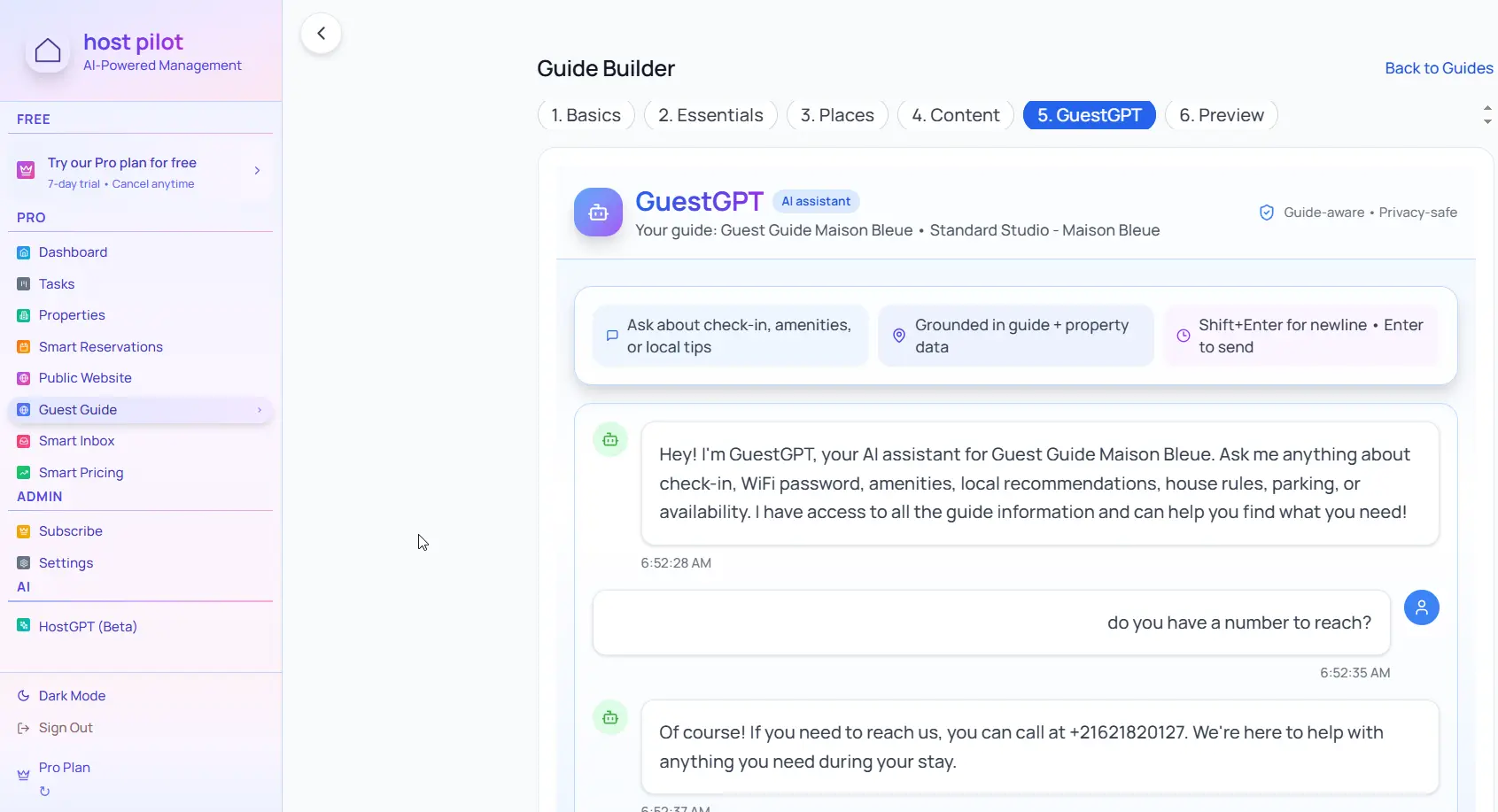
L'accès WiFi est essentiel pour la plupart des invités. Fournissez des instructions claires et faciles à trouver pour éviter la question la plus fréquente : « Quel est le mot de passe WiFi ? »
Points clés
- •Placez les infos WiFi en tête de votre guide—les invités en ont besoin tout de suite.
- •Incluez nom du réseau (SSID) et mot de passe clairement.
- •Ajoutez conseils de dépannage et option internet de secours si disponible.
Utilisez votre instructions wifi avec l'automatisation Booking.com
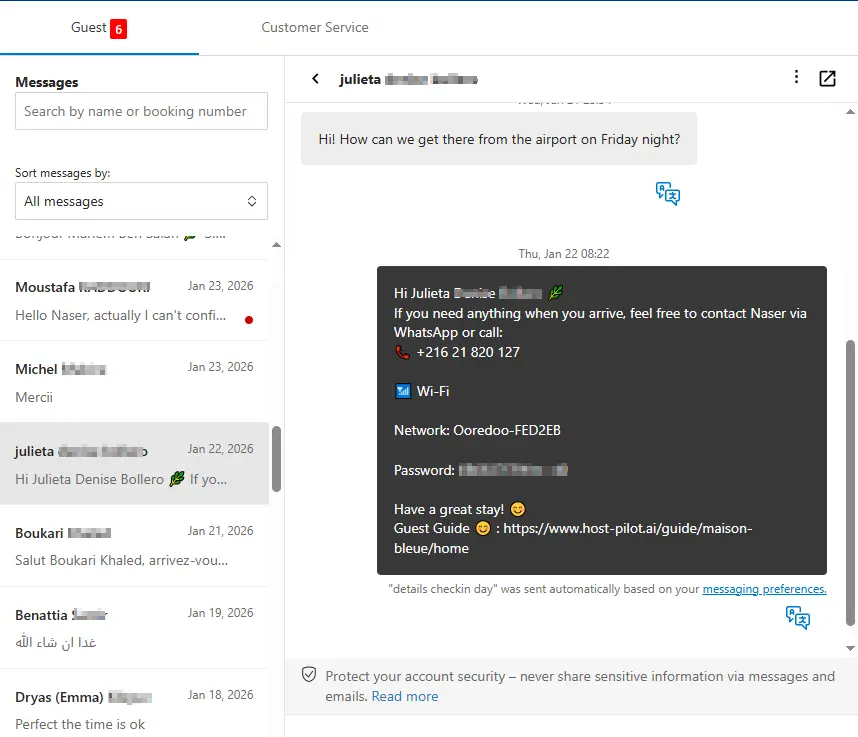
Que vous créiez un instructions wifi ou amélioriez un existant, vous pouvez le connecter à Booking.com et utiliser le même lien de guide dans les messages automatisés. Les invités reçoivent des réponses cohérentes et vous avez moins de questions répétées, quel que soit le canal de réservation.
Problèmes fréquents des hôtes
- •Les invités demandent le mot de passe WiFi en boucle
- •Les instructions WiFi sont noyées dans les messages ou l'annonce
- •Les invités n'arrivent pas à se connecter et ne savent pas dépanner
- •Pas d'option internet de secours quand le WiFi tombe
Ce que doivent inclure de bonnes solutions
- •Infos WiFi affichées de façon visible dans le guide invité
- •Nom du réseau et mot de passe clairement indiqués
- •Étapes de dépannage pour les problèmes courants
- •Option de secours (hotspot mobile ou WiFi proche) si possible
Conseils pratiques d'hôtes expérimentés
- Mettez les infos WiFi à plusieurs endroits : guide, message check-in, panneau dans le logement.
- Testez vous-même le mot de passe—assurez-vous qu'il est facile à taper sur mobile.
- Instructions pour réseaux 2,4 GHz et 5 GHz si applicable.
- Prévoyez un plan B : où les invités peuvent accéder au WiFi si le vôtre tombe.
Action : choisissez une pratique de ce guide à mettre en œuvre cette semaine. Testez-la avec votre prochaine réservation.
Options comparées
Choisissez l'approche qui convient à vos besoins.| Option | Idéal pour | Pourquoi ça marche ou pas |
|---|---|---|
| Mot de passe dans l'annonce seule | Caché | Les invités ne relisent pas l'annonce au check-in, demandent quand même. |
| Mot de passe dans un message | Partiel | Noyé dans la boîte, difficile à retrouver. |
| Guide + panneau dans le logement | Accessible | Disponible à plusieurs endroits. |
Où Host Pilot intervient
- •Incluez les instructions WiFi en évidence dans votre guide invité.
- •Rendez les infos WiFi faciles à trouver en tête des sections essentielles.
- •Mettez à jour instantanément si vous changez de réseau ou de mot de passe.
FAQ
Où mettre le mot de passe WiFi ?+
À plusieurs endroits : en haut du guide, dans le message check-in, et sur un panneau dans le logement (près du routeur si possible).
Inclure des étapes de dépannage ?+
Oui, des étapes basiques comme redémarrer le routeur ou oublier et reconnecter le réseau réduisent les demandes de support.
Et si mon WiFi est peu fiable ?+
Soyez transparent. Fournissez une option de secours (hotspot mobile ou WiFi proche) si possible.
Guides liés
Prêt à créer votre guide invité ?
Utilisez ce guide pour créer un guide invité efficace. Host Pilot vous aide à créer des guides mobiles avec QR codes et recommandations locales.