WiFi instructions: Make internet access easy for guests
WiFi access is essential for most guests. Provide clear, easy-to-find WiFi instructions to prevent the most common guest question: "What's the WiFi password?"
Key takeaways
- •Place WiFi information at the top of your guest guide—guests need it immediately.
- •Include network name (SSID) and password clearly.
- •Provide troubleshooting tips and backup internet options if available.
Use your wifi instructions with Booking.com automation
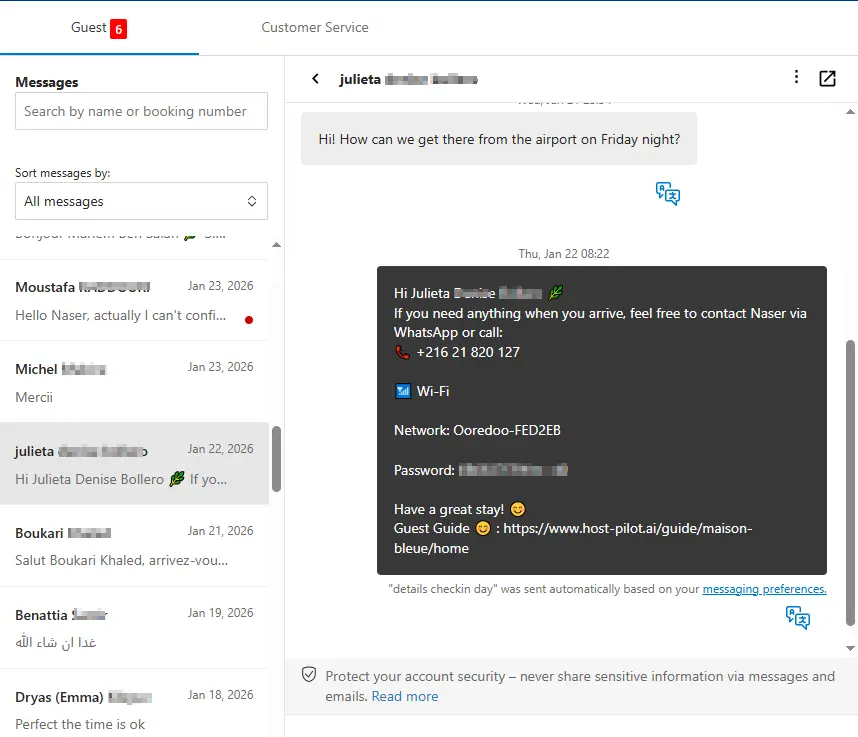
Whether you are building a wifi instructions or refining an existing one, you can connect it to Booking.com and use the same guide link in automated messages. Guests get consistent answers and you get fewer repeat questions, no matter which channel they booked on.
Common problems hosts face
- •Guests repeatedly ask for WiFi password
- •WiFi instructions are buried in messages or listing
- •Guests can't connect and don't know how to troubleshoot
- •No backup internet option when WiFi is down
What good solutions should include
- •WiFi information prominently displayed in guest guide
- •Include both network name and password clearly
- •Basic troubleshooting steps for common connection issues
- •Backup internet option (mobile hotspot info or nearby WiFi) if possible
Practical tips from experienced hosts
- Put WiFi info in multiple places: guest guide, check-in message, and a sign in the property.
- Test your WiFi password yourself—ensure it's easy to type on mobile.
- Include instructions for both 2.4GHz and 5GHz networks if applicable.
- Have a backup plan: know where guests can access WiFi if yours is down.
Action step: Pick one practice from this guide to implement this week. Test it with your next booking and measure the impact on guest questions and reviews.
Options compared
Choose the approach that fits your needs.| Option | Best for | Why it works / doesn't |
|---|---|---|
| Password in listing only | Hidden | Guests don't check listing details at check-in, still ask for password. |
| Password in message | Partial | Gets buried in inbox, hard to find when needed. |
| Password in guide + property sign | Accessible | Available in multiple places, guests can find it easily. |
Where Host Pilot fits
- •Include WiFi instructions prominently in your guest guide.
- •Make WiFi information easy to find at the top of essential sections.
- •Update WiFi details instantly if you change networks or passwords.
FAQ
Where should I put the WiFi password?+
In multiple places: at the top of your guest guide, in your check-in message, and on a sign in the property (near the router if possible).
Should I include troubleshooting steps?+
Yes, include basic steps like restarting the router or forgetting and reconnecting to the network. This reduces support requests.
What if my WiFi is unreliable?+
Be transparent with guests. Provide a backup option if possible (mobile hotspot info or nearby WiFi locations) and apologize in advance.
Related guides
Ready to create your guest guide?
Use this guide to build an effective guest guide for your property. When you're ready, Host Pilot can help you create mobile-friendly guides with QR codes, local recommendations, and easy updates.